
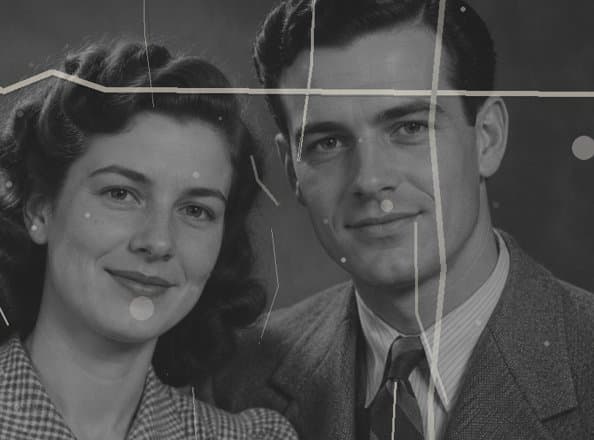
Review faces & fine details
Inspect facial features, expressions and clothing against your source before saving.
Explore AI repair for scratches, creases and visible damage in old photographs. Compare the result with your original and review the details that matter most.
Start with a scan or a clear picture of your print.
JPG · PNG · WebP · Up to 10 MiB / 4 MP · 4096px per sideOpen Restoration Studio →Review your credit quote before each restoration.
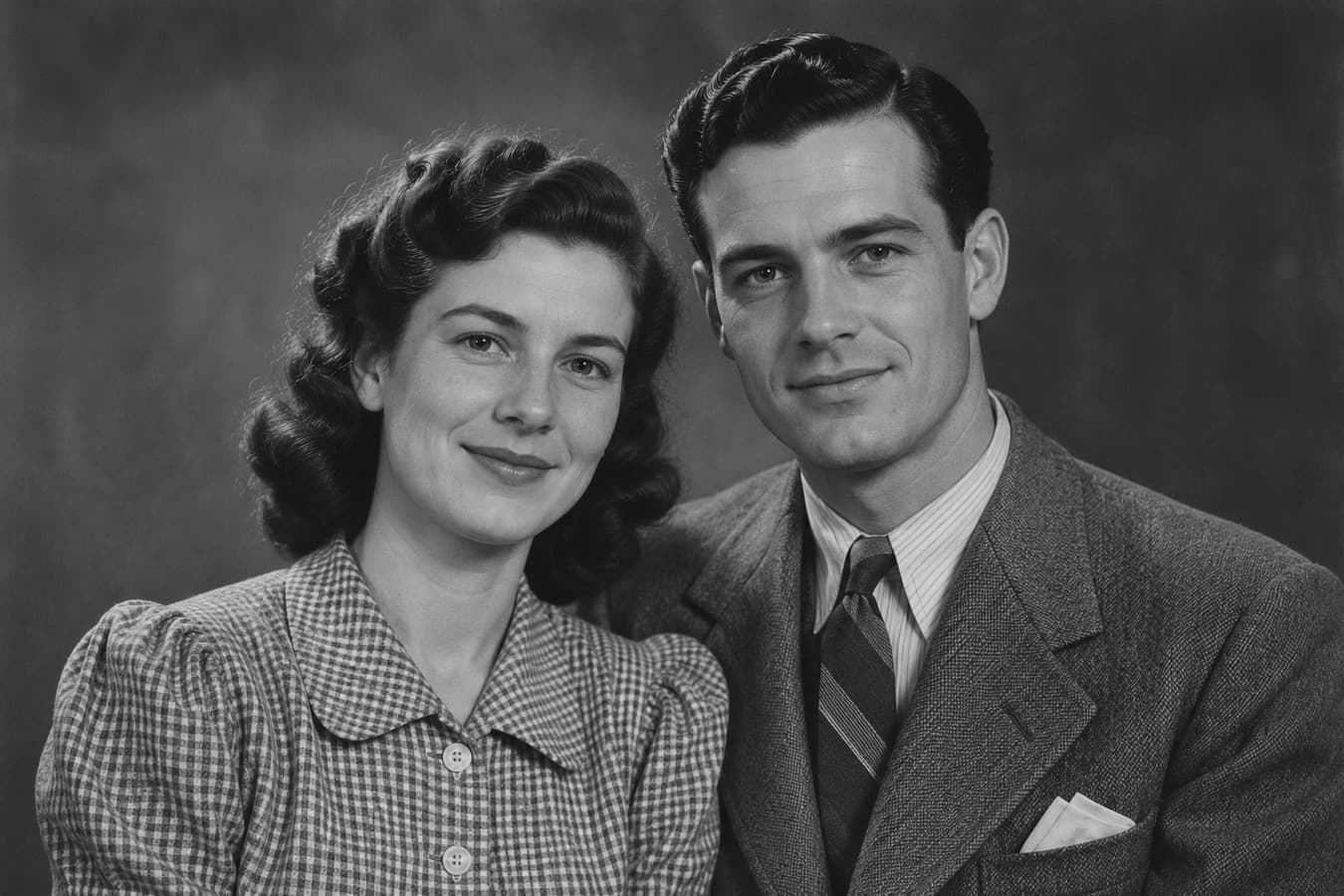
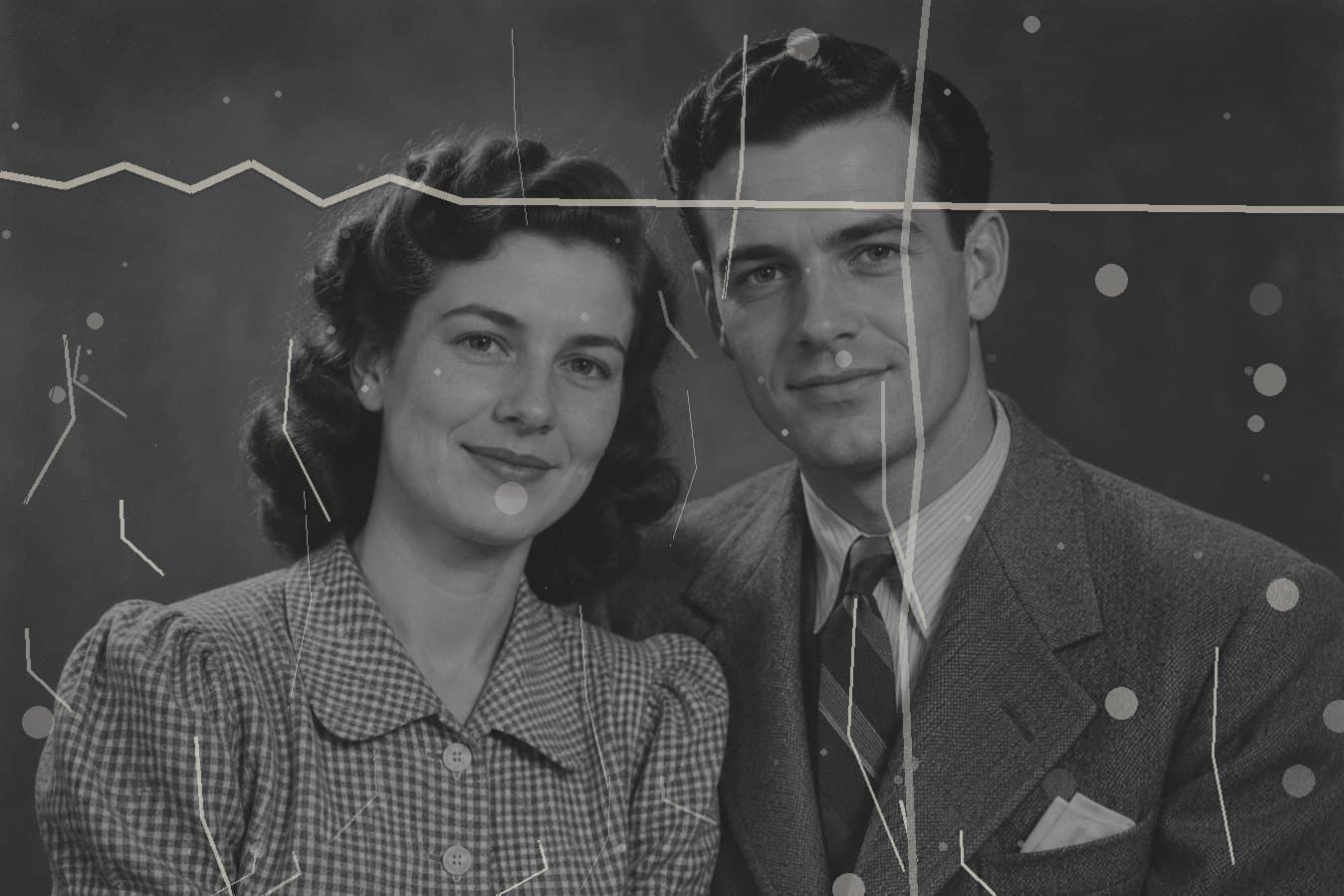
Synthetic portrait with artificial damage. This comparison illustrates the intended workflow and is not a tested AI result.
Keep a separate original and inspect every detail.
Areas to inspect in your photograph and its restored result.
Inspect facial features, expressions and clothing against your source before saving.
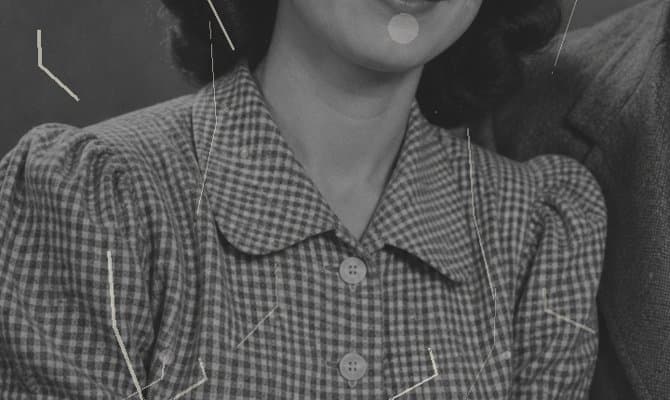
Explore repair of visible scratches and fold marks, then inspect the surrounding texture.
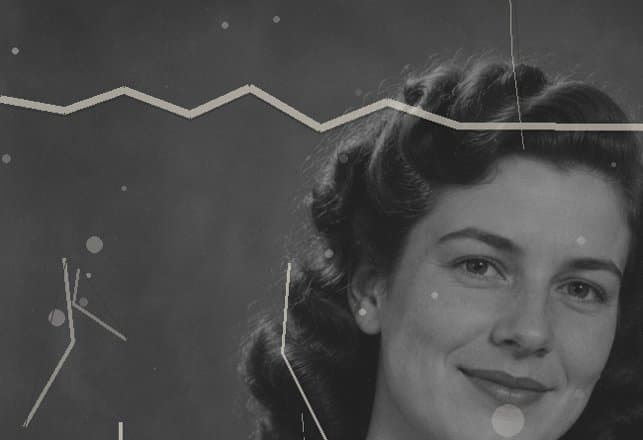
Check damaged edges and surface marks. Repair may leave wear or reinterpret nearby details.
Synthetic design illustrations with artificial damage.
Upload a supported old photo and keep your original as a reference throughout restoration.
Review the available repair mode and required credits, then confirm when you are ready.
Compare with your original. Inspect faces, textures and important details before downloading.
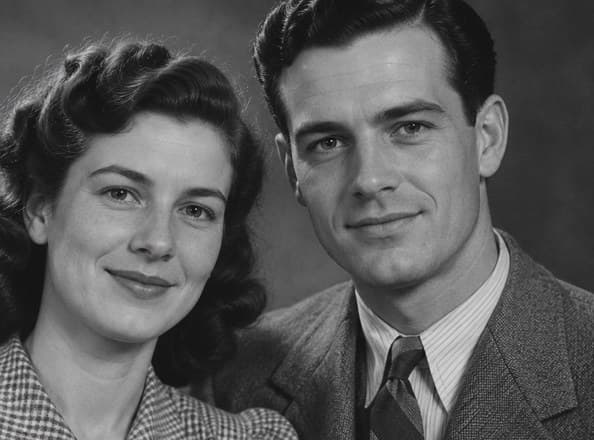
AI restoration may reconstruct missing details rather than recover the exact original information. Review faces, expressions, clothing and other important features against your source before sharing or printing.
Explore the workspace →Careful Restoration is designed to address scratches, cracks and creases using surrounding visual context. Results depend on the damage and may leave marks or change nearby details. Fading correction is not a verified capability of the current setup, and missing historical information cannot be recovered with certainty.
The default workflow asks the model to preserve faces and the original color treatment, without adding a separate face-restoration or colorization step. Facial details can still change. Outputs that colorize a detected monochrome input are rejected; this check does not guarantee identity, expression or sepia-tone fidelity.
No. AI can estimate or reconstruct missing visual information, but it cannot guarantee that those details match the original historical photograph. Compare faces, expressions, handwriting and clothing with your source. Treat reconstructed areas as interpretations, especially before sharing or printing a family photograph.
Choose a static JPG, PNG or WebP up to 10 MiB, 4 megapixels and 4096 pixels per side. Animated images and transparent pixels are unsupported. Use a straight, evenly lit scan or photograph of your print, and keep the original file as your reference.
Output dimensions may differ; the workflow checks the original aspect ratio with a small rounding tolerance. Working images use sRGB. Default repair asks to retain grayscale, sepia or existing color, but tones may shift. The result’s Black & White option is a local conversion, not recovery of original archival color.
Review the required credits in the workspace before confirming a restoration. Credits are reserved when the task is submitted and charged once a validated result is saved. Confirmed failures and cancellations release the reservation. Downloading a saved result again or exporting PNG/JPG does not add another processing charge.
Yes. Open a saved restoration as a private draft in AI Photo Enhancer to explore detail and clarity, or AI Image Upscaler to choose a larger output size. Each step needs a separate quote and confirmation. Check the restoration first so later processing does not amplify unwanted changes.
The current automatic Careful Restoration setup does not offer painted selections. Marked-area repair is available only when the dedicated local-repair mode is enabled; that mode preserves unmarked working-image pixels. For instructed edits to a selected area, explore AI Image Editor and review its available options.