
Refine the details that matter
Explore finer textures and visual details in everyday photos. Compare the enhanced result with your original to see what has changed.
Improve photo quality with AI-powered detail enhancement. Explore finer textures and clarity, compare your photo before and after, and choose the result that looks right to you.
JPG, PNG, WebP · Explore before signing in


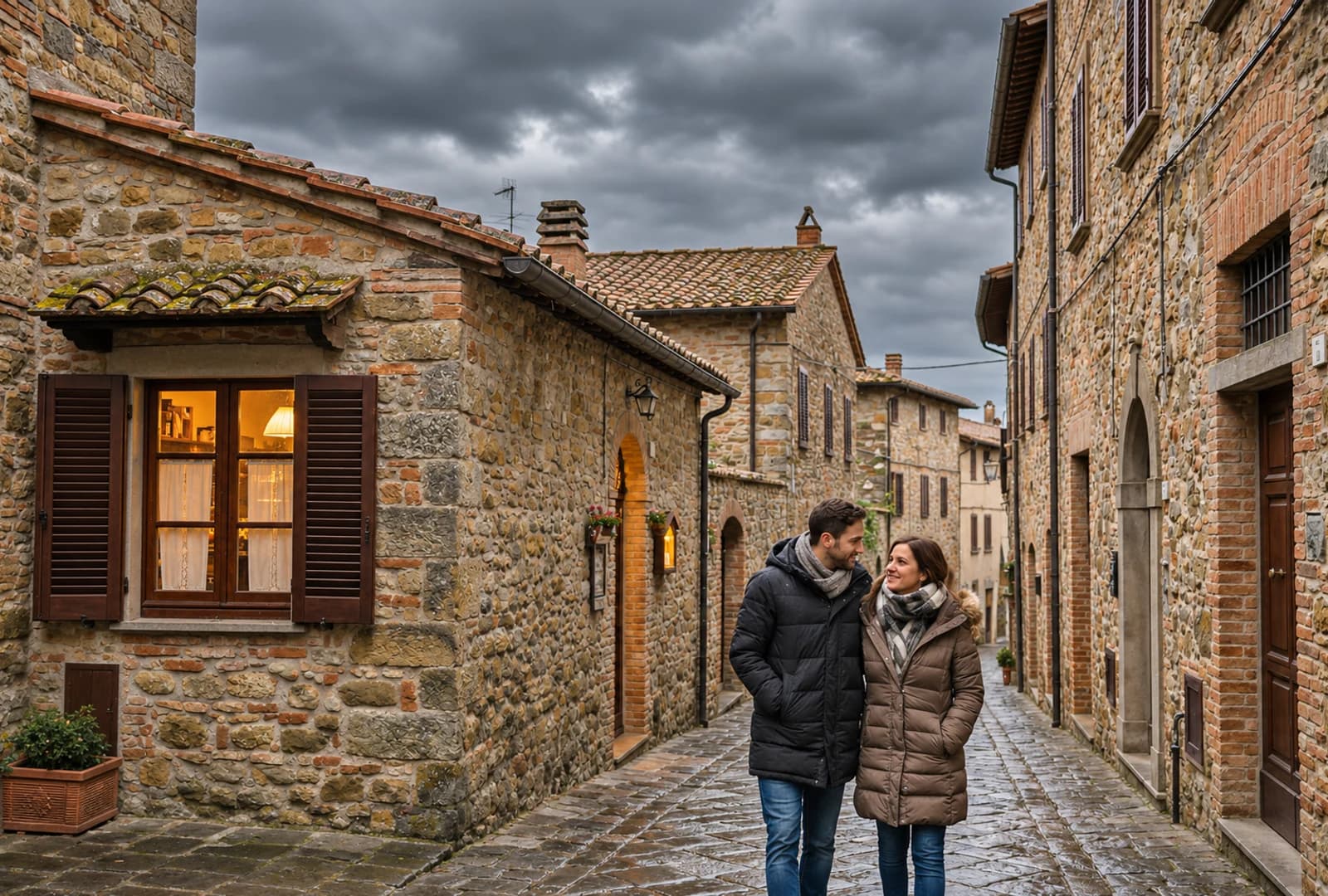
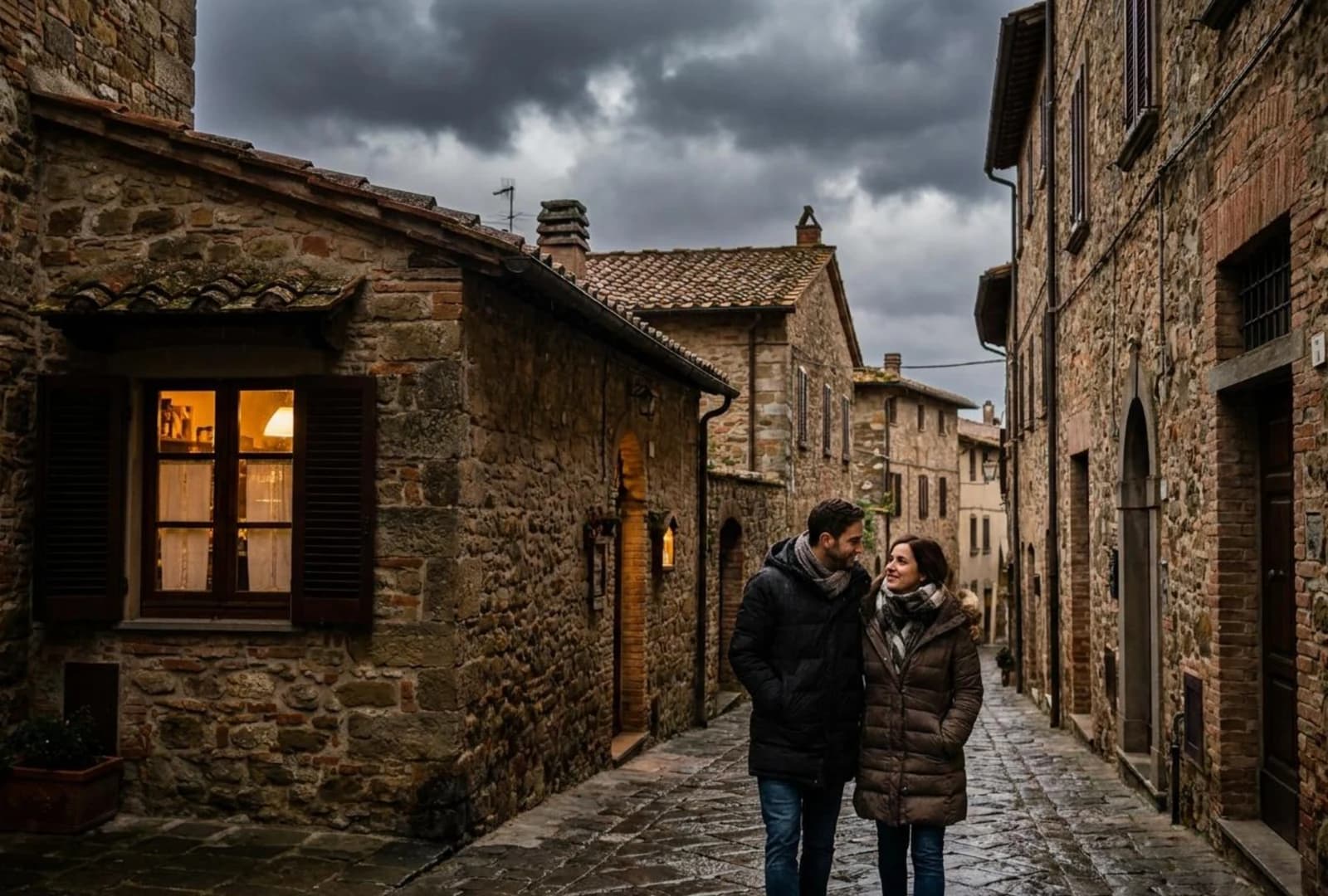
Illustrative lighting edit, not a Photo Enhancer result or evidence of lighting correction. Actual enhancement focuses on detail and clarity; results vary.
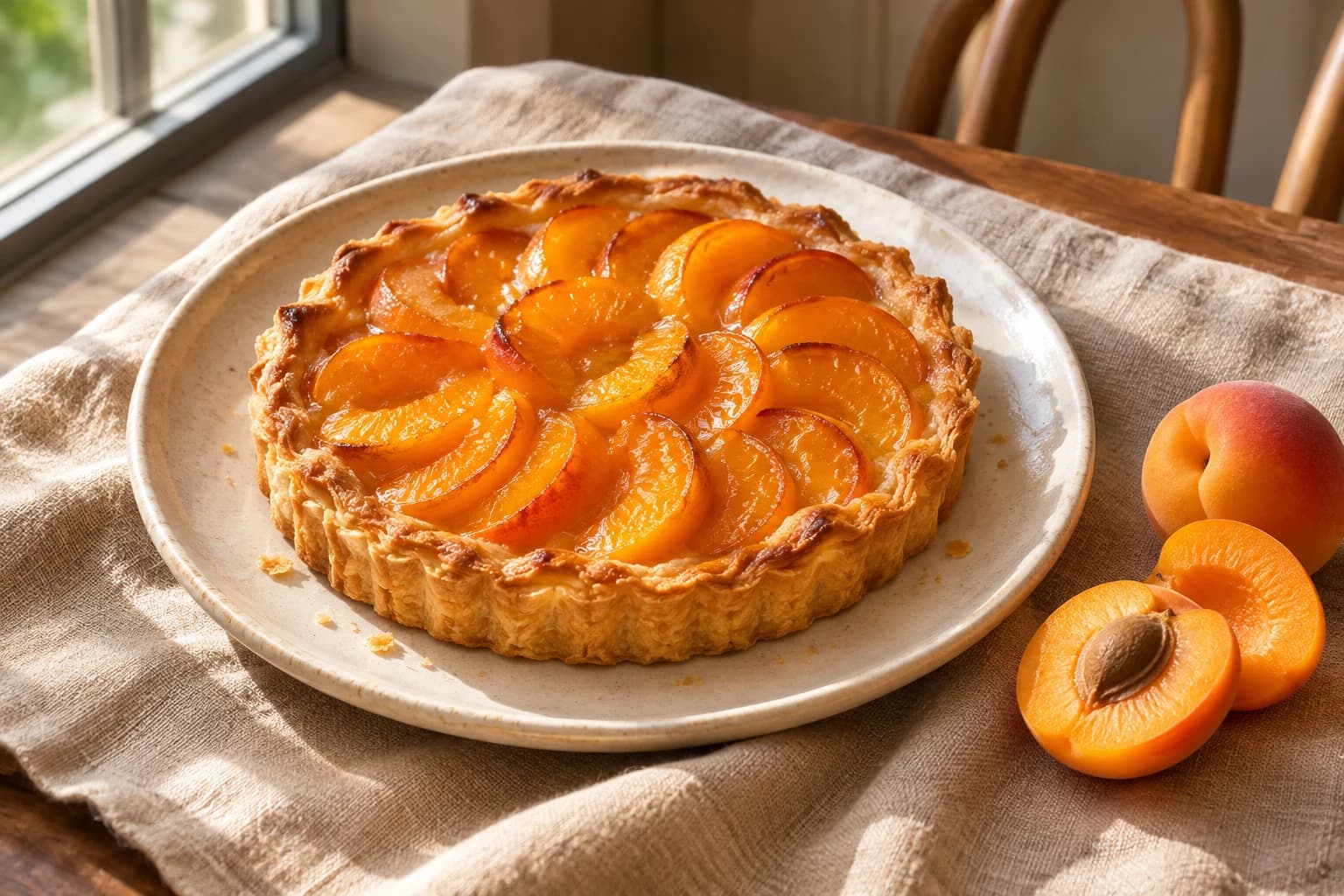
Give everyday photos a more refined look. Explore fine details, clarity and textures in travel photos and still-life images, using your original composition as the reference.
Explore finer textures and visual details in everyday photos. Compare the enhanced result with your original to see what has changed.
Give travel photos and still-life images a detail-focused enhancement. Check edges and delicate textures to decide whether the result looks natural.
Review faces, text, edges and textures before downloading. AI enhancement may reinterpret some details, and your original file stays separate.
A separate original. A clear quote. A result you can compare.
Upload a supported photo or load a sample to explore the workspace. You can prepare a local preview before signing in.
Check the expected output size and required credits before starting the enhancement.
Review the enhanced photo alongside your original. Inspect important details, then download the result as PNG or JPG.
Everything you need for a thoughtful first step.
Explore pricing & creditsAI Photo Enhancer uses detail-focused processing to refine the appearance of textures and photo clarity. It creates a separate result for comparison, currently at twice the original width and height. Results vary; it is not a dedicated exposure-correction, noise-removal or damage-restoration tool.
Photo enhancement focuses on how details and textures look, while upscaling primarily increases image dimensions and resolution. The current enhancer also produces a 2× image. Choose AI Image Upscaler when you want to select an available enlargement factor rather than use the enhancer’s fixed detail-focused processing.
Choose a static JPG, PNG or WebP without transparent pixels, up to 10 MiB, 4 megapixels and 4096 pixels per side. Animated images, HEIC and RAW are unsupported. The normalized working image must also fit the current 10 MB processing limit; some compressed uploads may exceed it after conversion.
No. The current enhancement process doubles both width and height: a 1200 × 800 photo becomes 2400 × 1600 pixels. The aspect ratio stays the same, and the result is not resized back to the input dimensions. Output is limited to 16 megapixels and 8192 pixels per side; review the quote before processing.
Yes. AI enhancement may reinterpret faces, small text and delicate textures, even without a separate face-restoration step. Compare these areas with the original before downloading. A more detailed-looking result is not proof that missing information has been recovered accurately or that a person’s appearance is unchanged.
Yes. You can explore the page and prepare a local photo preview before signing in. Workspace samples load a source photo, not a completed enhancement. Processing requires an account, available service and enough credits for the quoted task; browsing examples does not run the AI model.
The workspace shows the required credits for the planned output dimensions before you confirm processing. All tools share one credit balance. Each new enhancement is a separate task with its own quote; downloading a saved result again or changing its export format does not start another AI task.
Photo Enhancer is intended for overall detail and clarity, not targeted repairs or content changes. Explore Old Photo Restoration for scratches and physical damage in old photographs. Use AI Image Editor for an instructed change to a selected object, area or background, and review that tool’s options before processing.
Choose a photo and explore what a fresh look can do.