
Edit images with AI.In simple words.
Edit photos with AI using simple text prompts. Explore color changes and focused edits, then compare the details you want to keep.
JPG, PNG, WebP · Explore before signing in
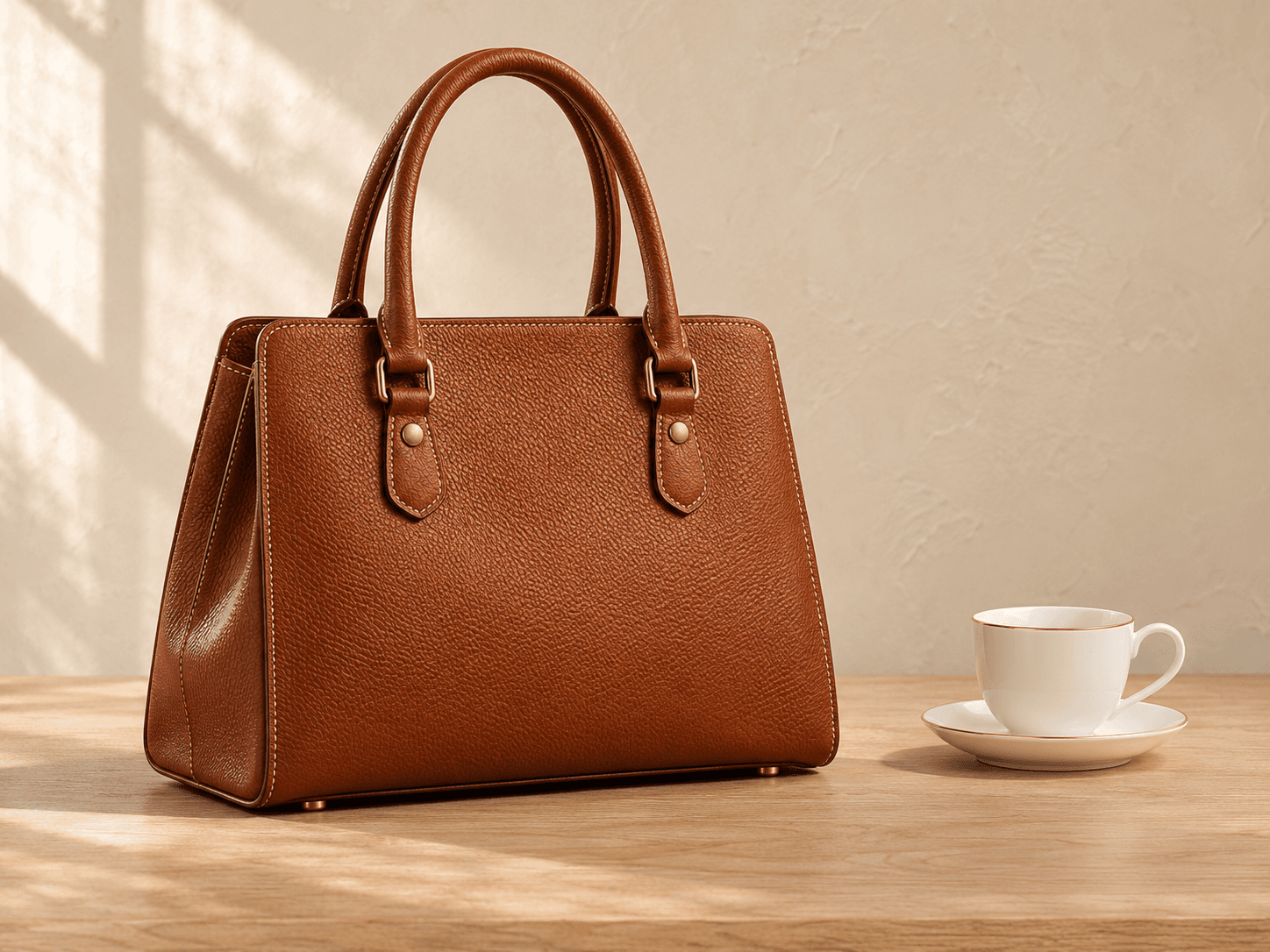
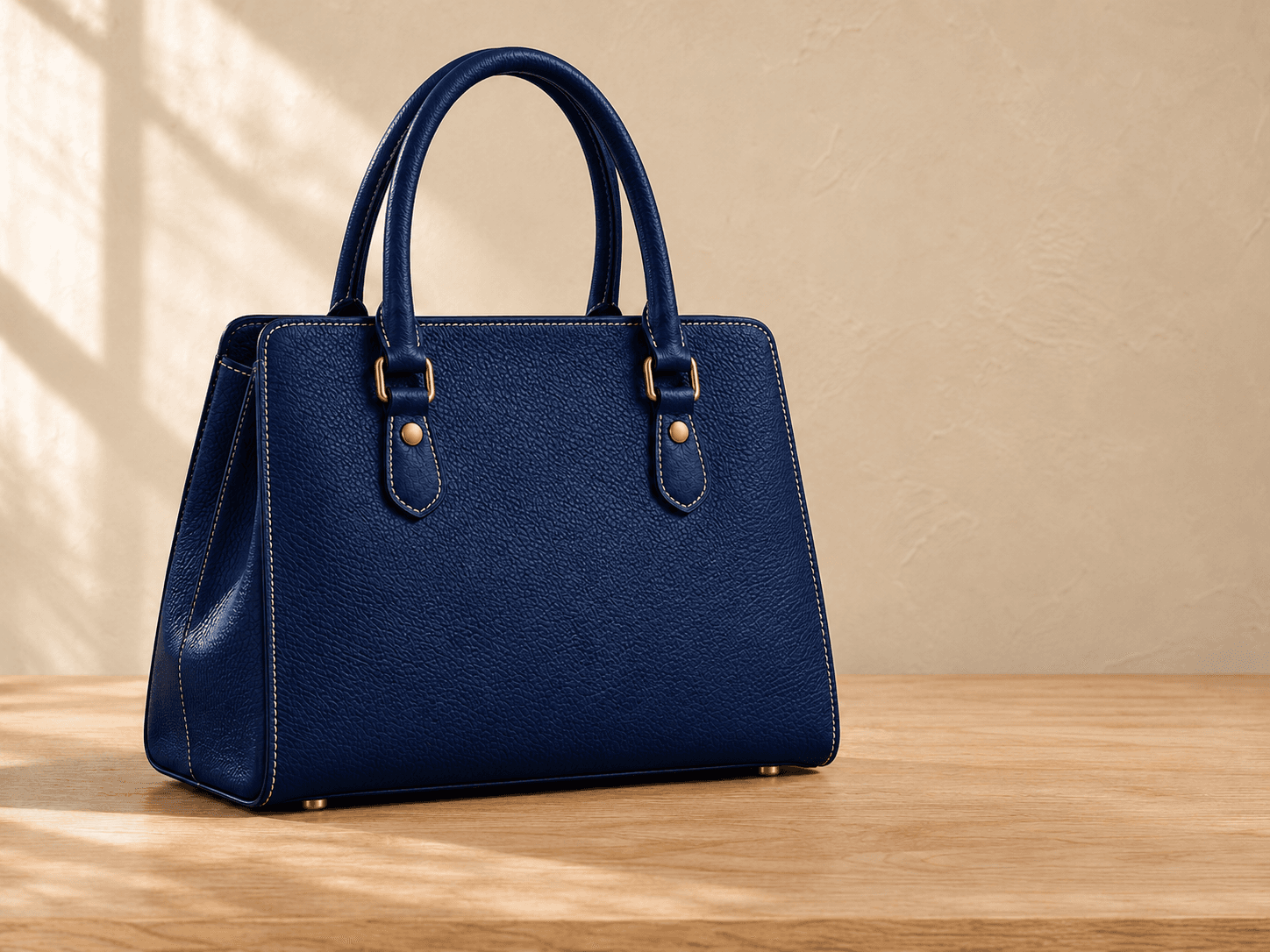
Try Object Recoloring with AI
Edit Selected Areas
Review What Stays the Same
What can you edit with a text prompt?
Describe the change you want to try in this AI photo editor. These are instruction ideas, not guaranteed results; processing depends on the available editing mode.
Change Object Color
“Change the brown leather bag to navy blue.”
Edit Clothing Color
“Make the red sweater forest green. Keep the knit pattern.”
Refine a Selected Object
“Change the white ceramic mug to pale blue.”
Make the change you imagined.
A clear path from your original image to an edited result — with you in control.
Upload your image
Start with an existing photo or artwork. Open it in the editor and review the available editing options.
Describe what to change
Write a clear text prompt. Select an area when processing is available, and review the required credits before confirming.
Review and download
Compare the edited result with your original. Check important details and save the version that works for you.
About AI Image Editor
How do I edit an image with a text prompt?
Open the editor, upload an image and describe one clear change. Choose the entire image or a selected area when that processing mode is available. Sign in and review the credit quote before confirming. Compare the saved result with your original, paying attention to faces, text, textures and edges.
Can I edit only one part of an image?
Yes. Choose Edit Selected Area and use the brush or rectangle tool to mark the area. Use the eraser to refine your selection. Empty or fully covered selections cannot be submitted; use Edit Entire Image for the whole picture. Review the boundary carefully, since selection accuracy affects the result.
Will AI change other parts of my photo?
Entire-image editing may change unrelated details. The selected-area pipeline checks alignment and composites within the authorized selection, but this is not a promise of perfect visual fidelity. AI may reinterpret details near the selection boundary. Compare with your original before downloading; lossy JPG or WebP exports can also alter pixels.
What kinds of edits can I make?
When processing is available, try text instructions for object color changes or focused modifications. Results vary; removal, replacement and texture retention are not guaranteed. Use AI Image Upscaler for resolution, Photo Enhancer for detail, Old Photo Restoration for damage, or Image Extender for a wider frame.
Which image formats can I upload?
Upload a static JPG, PNG or WebP up to 10 MiB and 4 megapixels, with each side between 64 and 4096 pixels. Animated images are not supported. Transparency is supported in selected-area processing, but not entire-image processing. Local edits retain the normalized source dimensions; entire-image results may have different dimensions.
How many credits does an edit cost?
The editor shows a server quote for the selected mode before you confirm processing. Check that quote for the current credit requirement; local previews do not generate an image. A confirmed job reserves credits, and a failed job releases them. A new generation needs a new quote, even when the instruction is unchanged.
Can I edit the same image multiple times?
Yes, when processing is available. Continue from a saved result or choose an available earlier version as your starting point. Each new generation is a separate paid task and saves a separate result instead of overwriting your original. Review each version, since repeated AI edits may accumulate unwanted changes.
Can I download my previous results?
Saved results stay in My Workspace until you delete them and do not expire based on age. Exporting an existing result as PNG, JPG or WebP does not run the model again or charge for another generation.
Ready to make your first edit?
Upload an image and explore the tools available in your account.