
Upload your image
Upload a supported JPG, PNG or WebP, or explore a sample. Start with a local preview of your image and canvas.
Expand images with AI to create more space around your photos. Extend backgrounds and explore new aspect ratios, using your original composition as a starting point.
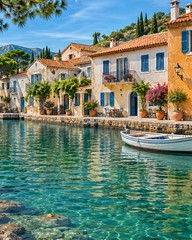
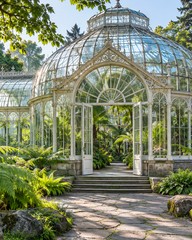
 Design illustration
 Start with your photo. Explore the format.More room around what matters.
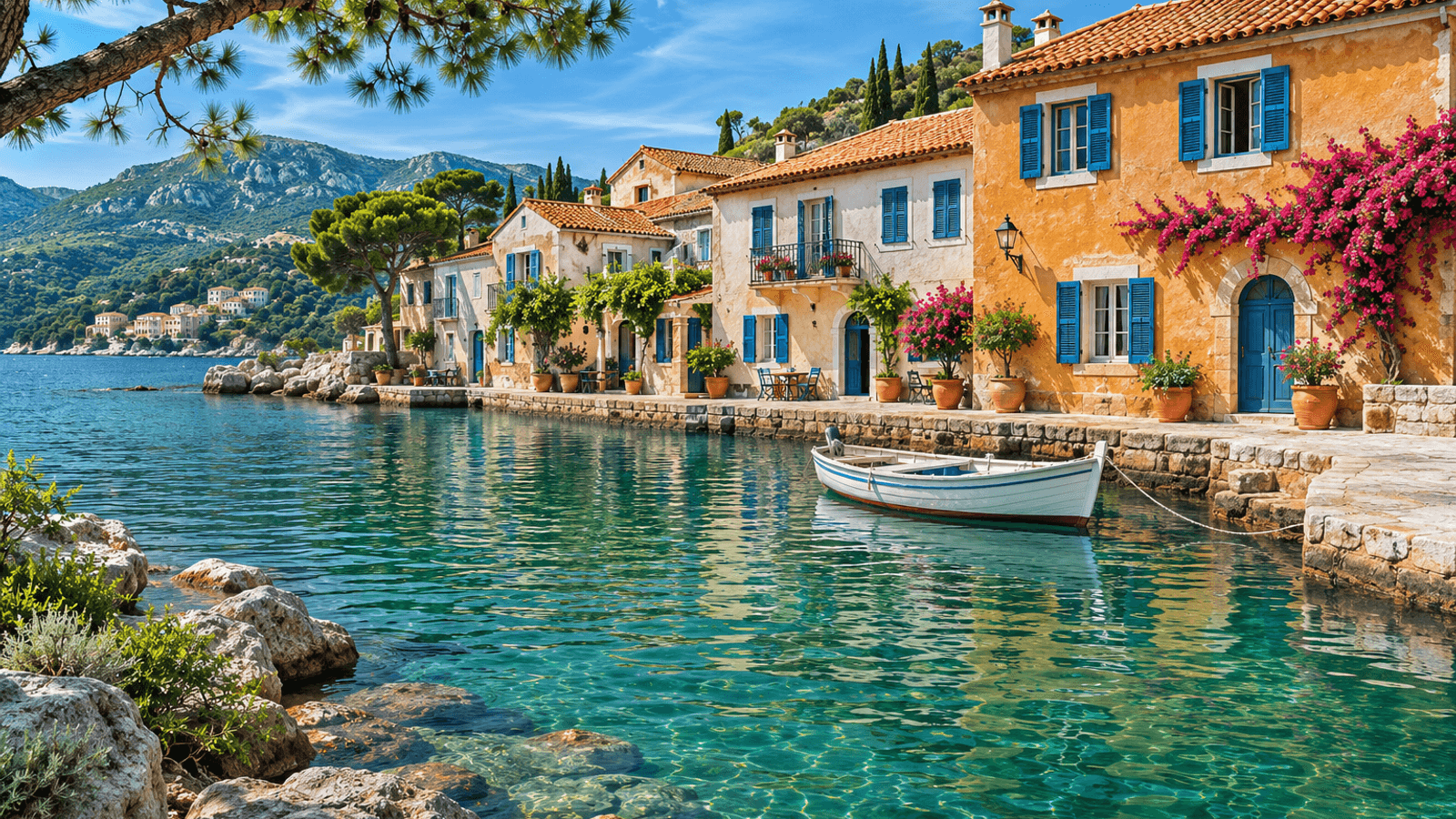
Expand landscape photos into wider compositions for banners, presentations, and creative projects.
Preview layout →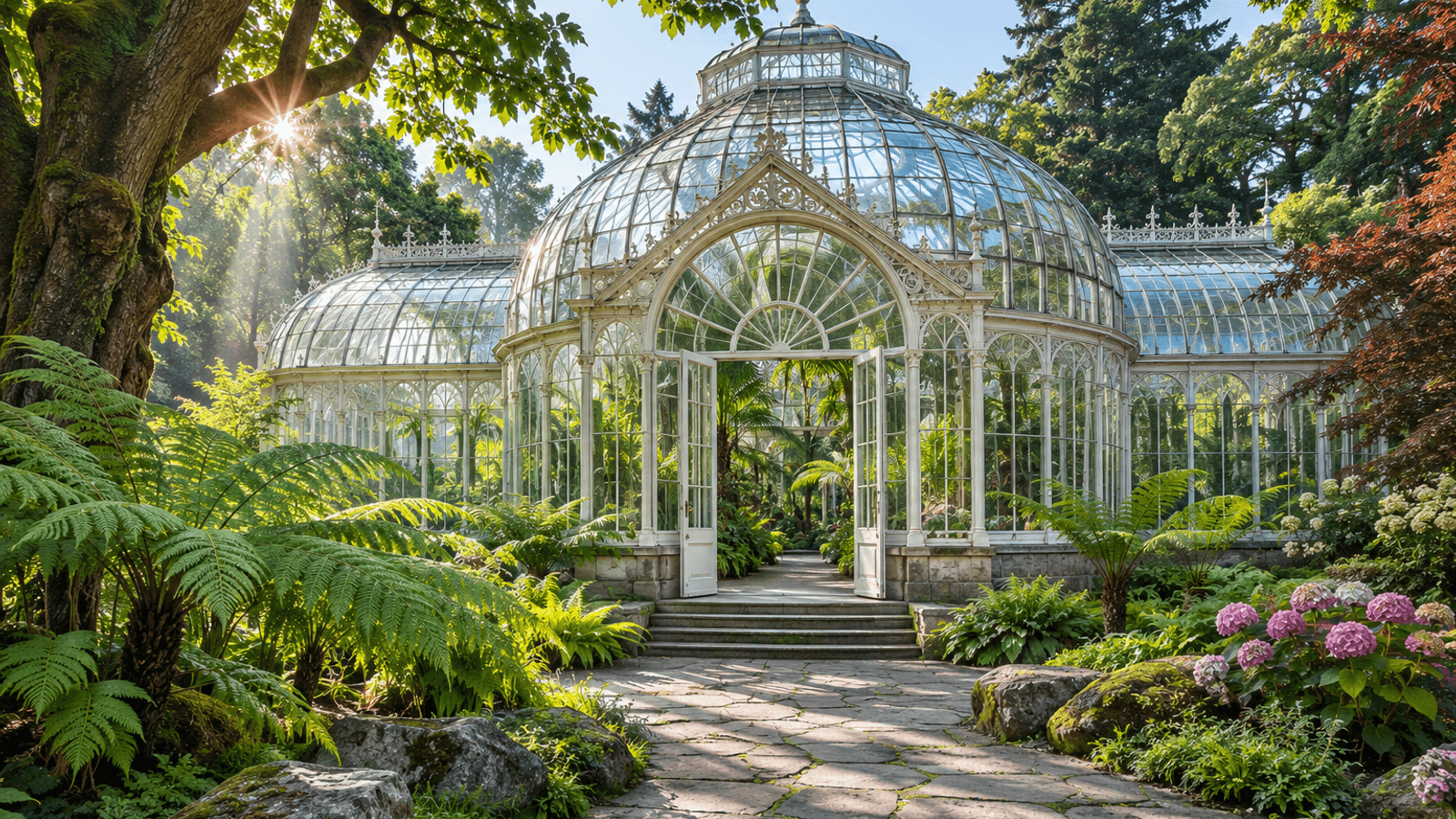
Create more room around your subject for text, layouts, and different image formats.
Preview layout →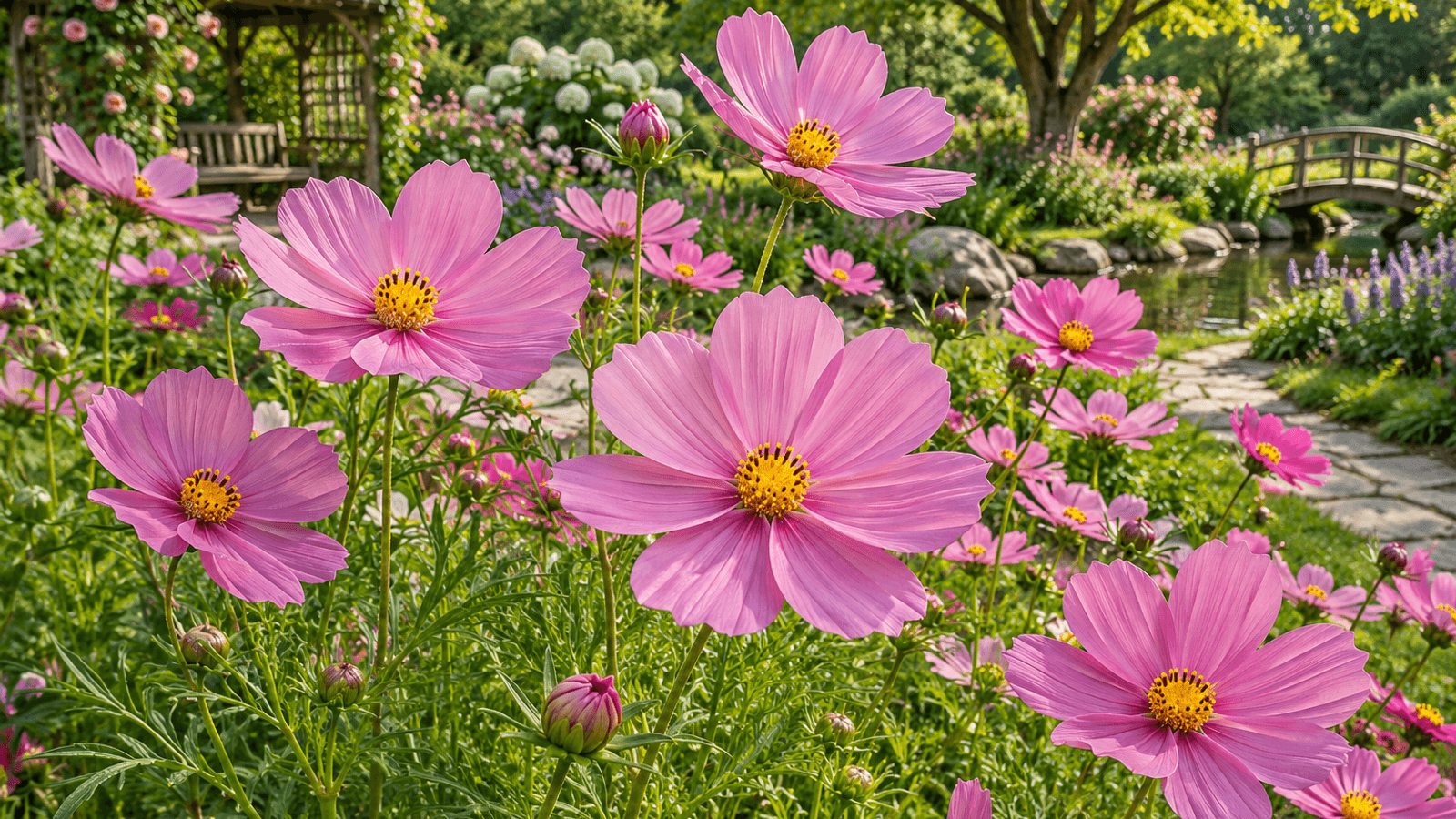
Uncrop tightly framed photos by generating a new surrounding scene. Keep your subject inside the canvas when adjusting the frame.
Preview layout →AI Image Extender generates new surroundings beyond a photo’s frame, a process called AI outpainting. Use it to extend backgrounds or uncrop photos for a different composition. The added scene is an AI interpretation, not a recovery of what was actually outside the camera’s view. Review the result before using it.
That depends on the processing mode. Some modes generate a result without copying the original pixels back, so faces, text and other details may change. Protected modes verify the normalized source area in the saved PNG. Custom canvas adjustments can also crop your photo. Check the workspace’s protection notice and compare with your separately retained upload.
Choose 1:1, 4:5, 3:2, 4:3, 3:4, 16:9, 9:16 or a custom canvas. The canvas is limited to 4 MP, 4096 pixels per side and three times the submitted source area; the selected model may impose stricter limits. Review the dimensions and any cropped area before requesting a quote.
Yes. Position your photo against a canvas edge or adjust individual canvas edges to leave new space on the side you want to extend. Keep the whole photo inside the canvas if you do not want to crop it. Review the layout before generating, then inspect the join between existing and generated areas.
Extending creates new scene content outside the existing frame to change the composition. AI Image Upscaler primarily increases the dimensions of the picture you already have. Choose extending for more background or layout space; choose upscaling when you want the existing composition at a larger resolution.
Local layout previews do not run AI or use credits. Sign in to request a processing quote and review the required credits before confirming. Credits are reserved for the task and charged after successful validation and saving. A confirmed failure releases the reservation. A different layout or another generation requires a new quote.
PNG preserves the pixels of the saved result. JPG uses lossy compression and may change pixels, including those in the original area, but can be smaller. Neither format guarantees that AI left the original content unchanged. Downloading the same saved result again or switching format does not run AI or use additional credits.
Yes. Open a successful saved result in AI Photo Enhancer for detail and clarity, or AI Image Upscaler for larger dimensions. Each is a separate processing task with its own quote. Enhancement may reinterpret details, and each saved version remains separate so you can review the changes.